How to remove text from an image (and what to expect)
Here is how to remove text from an image: open Remove text from image, choose the picture, paint over the words with the brush and press Erase. An AI model fills the painted area with background that matches its surroundings. It runs in your browser, so the picture is not uploaded.
One thing to know before you start: the tool does not find text by itself. It erases exactly what you paint, nothing more. That gives you control, and it also means a careful brush gives a cleaner result.
When it is useful
- A date printed in the corner by an old camera.
- A caption burned into a meme template you want to reuse.
- Labels or arrows on a diagram or screenshot you want to annotate again.
- A price or sticker on a product photo.
Please only edit pictures you have the right to change. Removing a photographer's credit or a creator's watermark is not what this tool is for.
How to remove text from an image, step by step
- Open Remove text from image.
- Drop the picture on the page or click Choose image. JPEG, PNG, WebP, AVIF, GIF, BMP and HEIC (iPhone photos) all work, one picture at a time.
- Pick a Brush size a little wider than the letters.
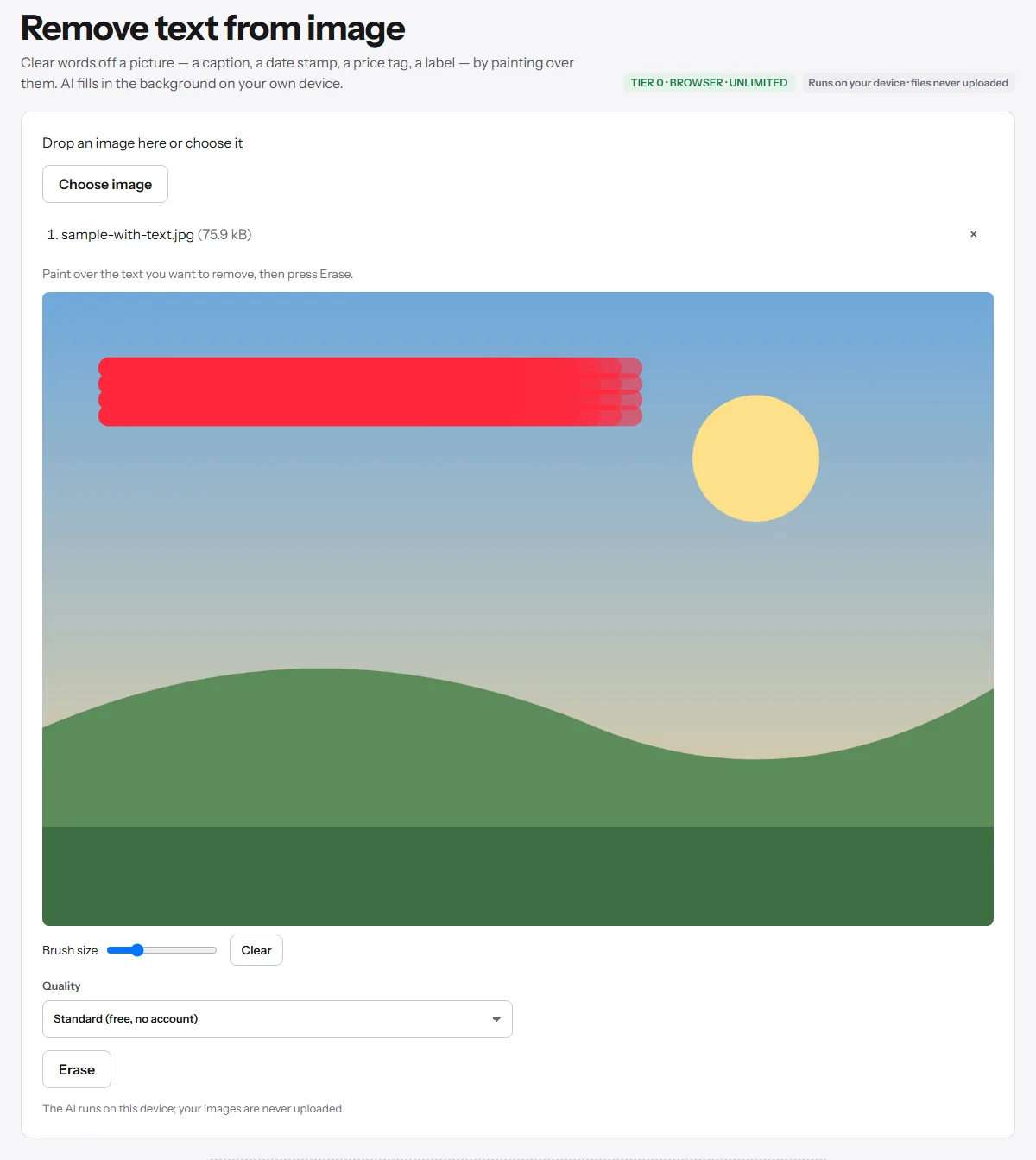
- Paint over the text with the mouse, your finger or a pen. Cover every letter, plus a thin margin around it. If you slip, press Clear and paint again.
- Press Erase.
- Download the result. Your original file is not changed.
The first time you use the tool, your browser downloads the AI model (about 28 MB) and the code that runs it (about 26 MB). That can take a moment on a slow or mobile connection. Your browser keeps them, so later uses start much faster.
Tips for a clean result
- Paint just past the edges of the letters. Leftover outlines or shadows are the most common reason a result looks smudged. The tool already grows your strokes by a few pixels, but a small margin helps.
- Work in small pieces. For a long caption, erase one word or one line, download, open the result and do the next part. Smaller areas give the model more real background to copy from.
- Use a smaller brush near edges you want to keep, such as a face or the line of a building.
- Try again on a bad patch. Open the downloaded result in the tool, paint over just the part that looks wrong and press Erase again.
What works well, and what doesn't
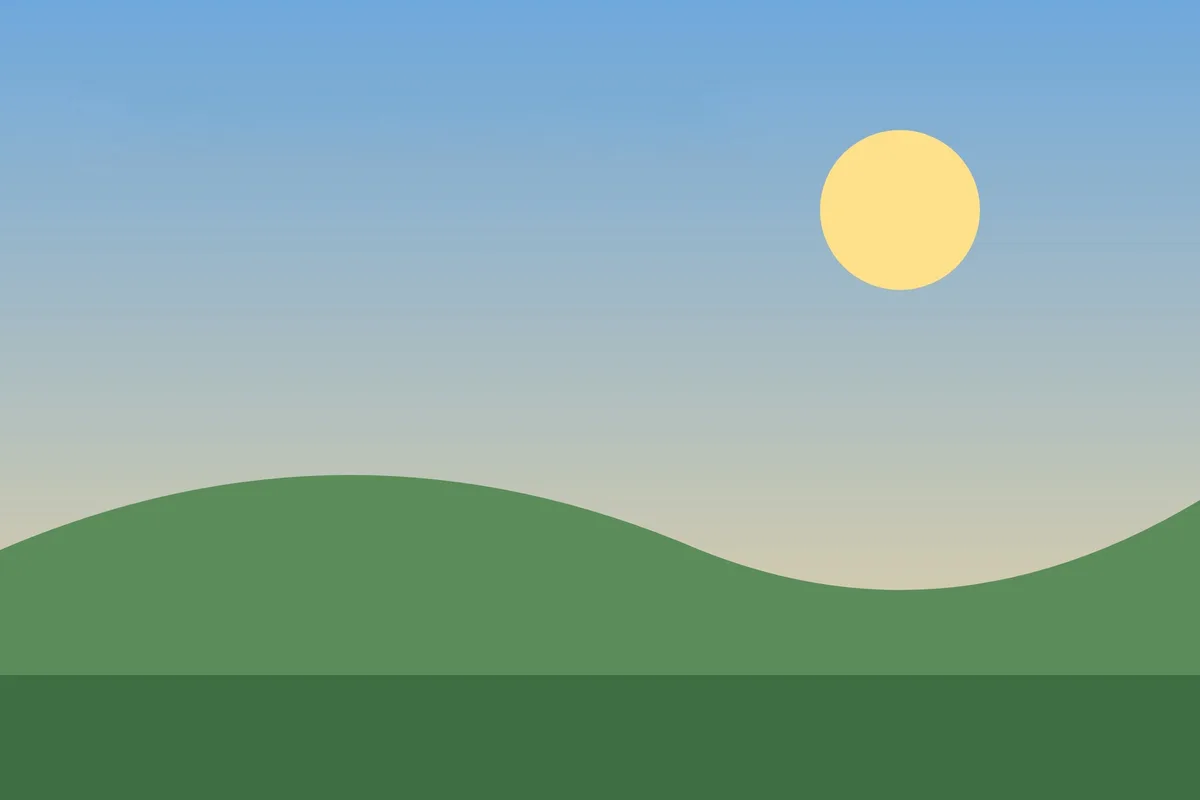
The model invents new pixels from what surrounds the painted area. It does that well on plain or natural backgrounds: sky, a wall, a single colour, sand, grass, fabric.
It has a harder time when the text sits across something detailed: faces, other text, patterned tiles, a crowd, sharp straight lines. There it may leave a blur or a pattern that doesn't line up. Large areas on big photos are harder than small ones, which is why working in pieces helps.
If you have a free UtilNest account, you can also choose HD quality. It uses a larger model (LaMa), still on your device (a one-time download of about 200 MB), which can do better on harder areas. Free accounts get 3 HD runs a day; Plus and Pro have unlimited HD. Standard quality is unlimited and needs no account.
Want the text, not the picture?
If you need to copy the words out of the image before you remove them, use Image to text first. To remove a person or an object instead of text, Object remover works the same way.
Your picture stays on your device
Both the painting and the AI fill happen in your browser, on your computer or phone. The picture is not sent to a server. How browser-only tools work explains what that means and how you can check it yourself.