How to make a picture smaller (and keep it sharp)
To make a picture smaller, open Resize image, choose the picture, pick a percentage or a width in pixels and press Resize. You get a copy with fewer pixels and a smaller file. It runs in your browser, so the picture is not uploaded.
Smaller in pixels or smaller in file size?
"Smaller" can mean two things, and they are fixed in different ways.
- Fewer pixels. A phone photo is often thousands of pixels wide, far more than an email or a web page shows. Resizing to a smaller width fixes this, and the file gets smaller too, because there is less picture to store. At 50 %, each side is halved, so the picture has a quarter of the pixels.
- A lighter file at the same size. Sometimes the pixel size is fine but a form says "maximum 1 MB". Then Compress image helps: it saves the picture again as JPG or WebP at a lower quality, and can also shrink the longest side. If the result would not be smaller, it keeps your original.
If you are not sure, start with resizing, then compress only if the file is still too heavy.
How to resize a picture
- Open Resize image and choose your picture, or drop it on the page. JPG, PNG, WebP, AVIF, GIF, BMP and HEIC (iPhone photos) work.
- Under Resize by, choose one of four options:
- Percentage: 50 halves each side.
- Width: type the width in pixels; the height follows.
- Height: the same, starting from the height.
- Fit in a box: the picture becomes as large as possible inside a width × height box, without being cut or stretched.
- Press Resize and download the result.
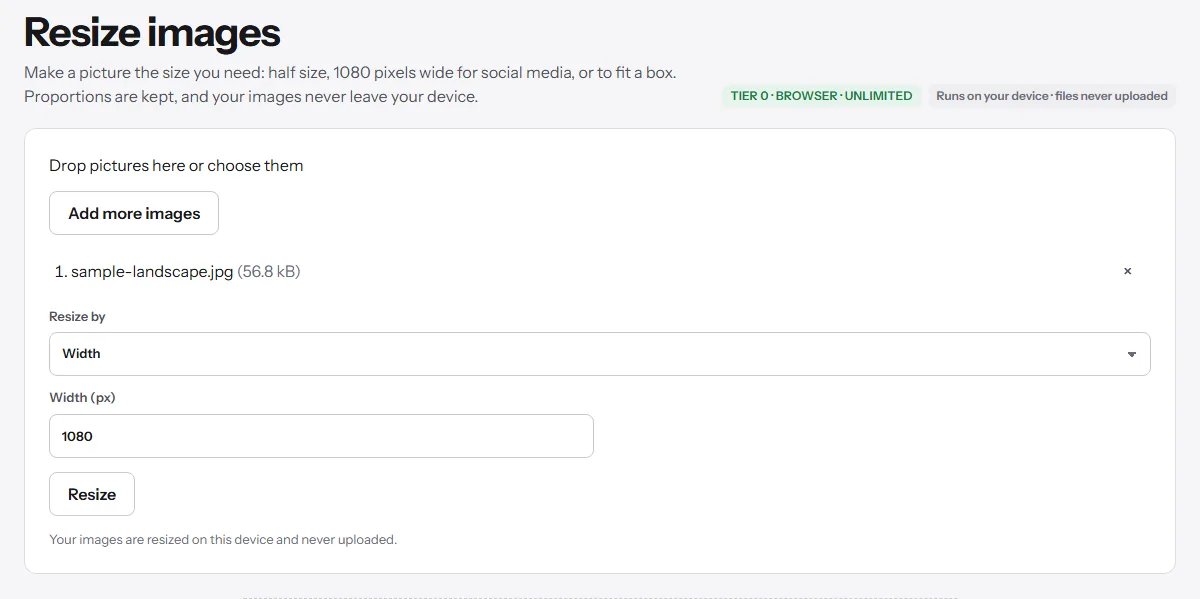
The proportions are always kept, so nothing is squashed. JPG, PNG and WebP files keep their format (a JPG stays JPG, a PNG keeps its transparency). Other formats, including HEIC photos from an iPhone, come out as PNG, which can be heavy for a photo; if the file is still too big, run it through Compress image, which saves it as JPG. The new file's name gets the new size, like photo-1080x810.jpg. Photo details such as camera model and GPS location are not copied into it.
You can resize up to five pictures at once with the same settings.
Picking a size
There is no single right size; it depends on where the picture goes.
- Upload forms usually state a limit, in pixels or in megabytes. Use that number: set the width or height in pixels, or compress if the limit is in MB.
- Email: the reader sees the picture in a window much narrower than a phone photo. A smaller width keeps the message light and fast to open.
- Social media and web pages: the tool page suggests 1080 pixels wide for Instagram, and Fit in a box at 800 × 800 for square product photos in an online store.
If you are unsure, resize to 50 %, check that the result still looks right and repeat if it is still too big. Keep the original: every resize throws pixels away.
JPG or PNG?
Resizing keeps JPG, PNG and WebP as they are (other formats become PNG), so this matters only if the file is still too heavy afterwards.
- Photos are best as JPG. JPG loses a little quality when it saves, but normally you can't see it, and the file is much smaller.
- Screenshots, logos and pictures with transparency are usually PNG. PNG is lossless, so it only gets lighter when it has fewer pixels. A photo saved as PNG can be very heavy; converting it with PNG to JPG makes it much lighter, but transparent areas turn white.
What resizing can't do
Making a picture smaller works well. Making it bigger does not add detail: the tool accepts a percentage above 100 or a larger width, but the extra pixels are filled in from the ones already there, so the picture looks soft or blurry. Start from the largest original you have.
Resizing also never changes the shape. To make a wide photo square, crop it first, then resize.
Your picture stays on your device
The resizing happens in your browser, on your computer or phone. The picture is not uploaded and there is no limit on how often you use the tool. How browser-only tools work explains what that means and how to check it yourself.