How to unlock a PDF you own (remove a password you know)
To unlock a PDF you own, open Unlock PDF, choose the file, type its password and press Unlock PDF. You get a copy that opens without asking. The tool removes only a password you already know; it does not guess or crack passwords.
Two kinds of PDF password
A PDF can be locked in two different ways, and the fix is slightly different for each.
- Open password. The file asks for a password before it shows anything. Banks, payroll services and government sites often send statements like this, with the password set to a document number or a date of birth. To unlock it, you type that password.
- Permissions password. The file opens normally, but printing, copying text or editing is blocked. For these, you leave the password field empty, and the restrictions are removed.
If you are not sure which one you have, try opening the file in any PDF reader. If it asks for a password, it is the first kind.
How to unlock a PDF, step by step
- Open Unlock PDF.
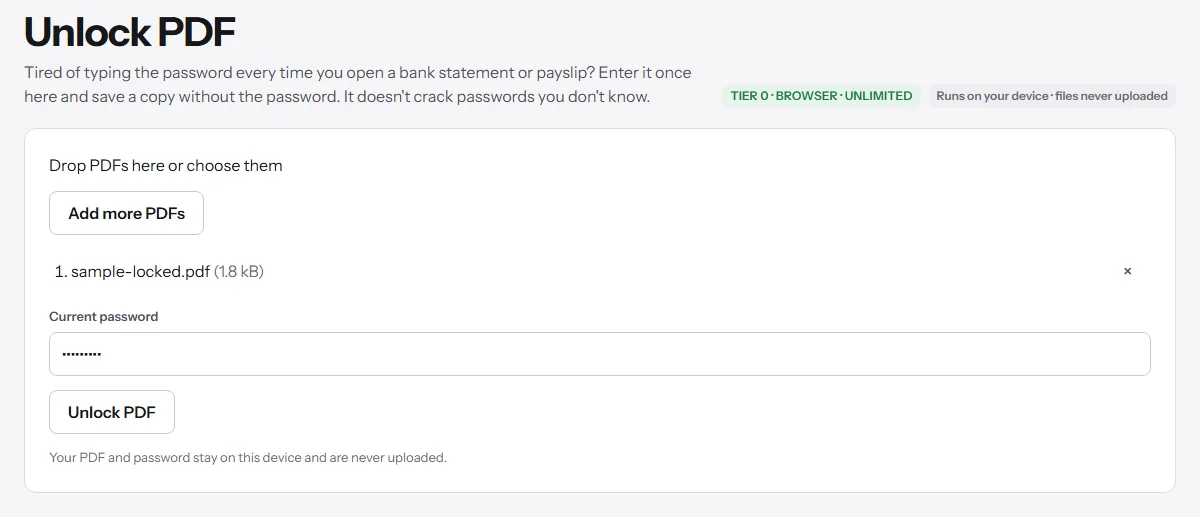
- Drop your PDF on the page or click Choose PDFs. You can add up to five files at a time if they share the same password.
- Type the current password in the password field. If the file opens fine and only blocks printing or copying, leave the field empty.
- Press Unlock PDF.
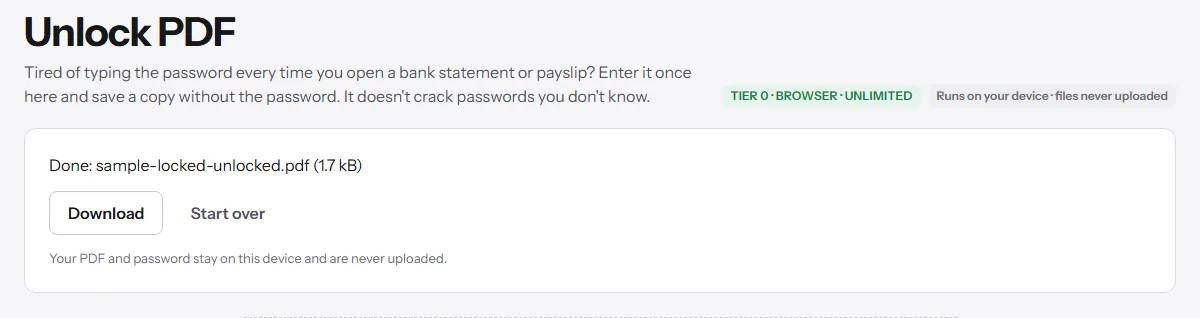
- Download the unlocked copy. Your original file is not changed.
If the password is wrong, the tool says so and makes nothing. Check for capital letters, extra spaces and whether the sender used dots or dashes in a date.
If you add several files and one has a different password, the run stops and names that file. Unlock that one on its own.
The unlocked copy opens in any PDF reader, so you can merge, compress or print it without typing the password again.
What changes in the unlocked copy
Only the lock. The pages, text, images and links are the same as in the original; the file is saved again without encryption, so it no longer asks for a password and no longer blocks printing or copying.
An unlocked PDF behaves like any other PDF. Search inside it, fill it in, sign it, or attach it to a form that refuses protected files.
If you forgot the password
This tool can't help with that, and we won't pretend otherwise. It needs the password to decrypt the file. Without it there is nothing to remove.
What usually works:
- Look at the email or letter the PDF came with. Banks and payroll services often explain the password rule there, such as the first digits of a document number or your date of birth.
- Ask the sender for an unlocked copy, or download the document again from their website.
- If you created the PDF yourself, check where you keep your passwords.
Files protected with a digital certificate instead of a password are not supported either.
Your password and your file stay on your device
The PDF is decrypted by your browser, on your computer or phone. Neither the file nor the password is uploaded. That matters for the kind of documents that come with passwords: bank statements, payslips, tax forms. How browser-only tools work explains what that means and how to check it yourself.
Keep the unlocked copy safe
The new file has no password at all, so anyone who gets it can open it. Store it somewhere private. If you need to send it on, you can add a new password with Protect PDF.